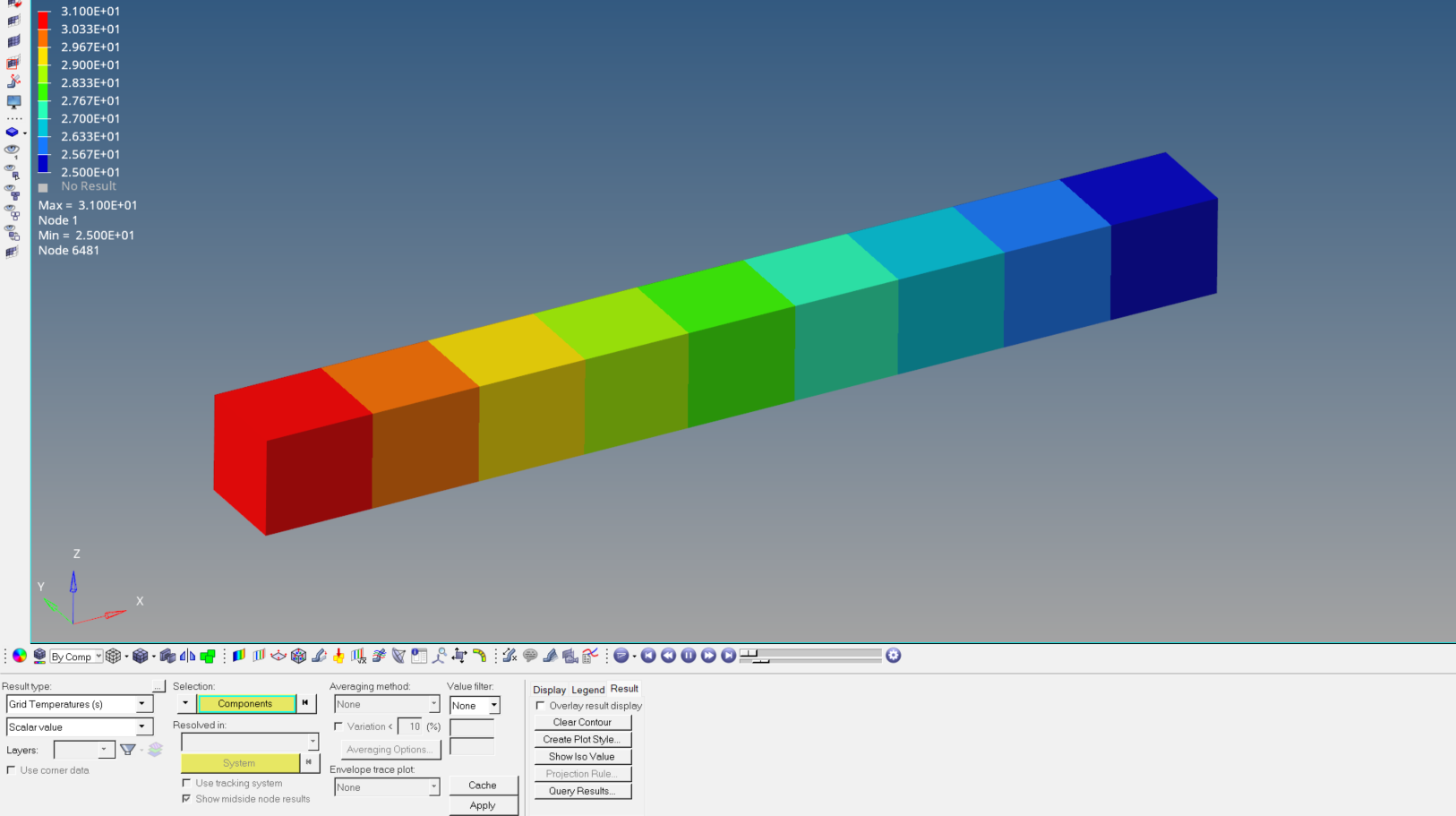
Till now, we have seen Random Vibration analysis before. If you have not seen that post, you can check it out here. In this post, we are going to discuss Thermal analysis using Nastran.
In this post, we will start with the thermal analysis tutorial. If you want to read about the thermal analysis theory, you can check it out here.
Performing Heat Transfer Analysis
For this tutorial, we will be using a beam and applying a flux load to it.
Meshed Model
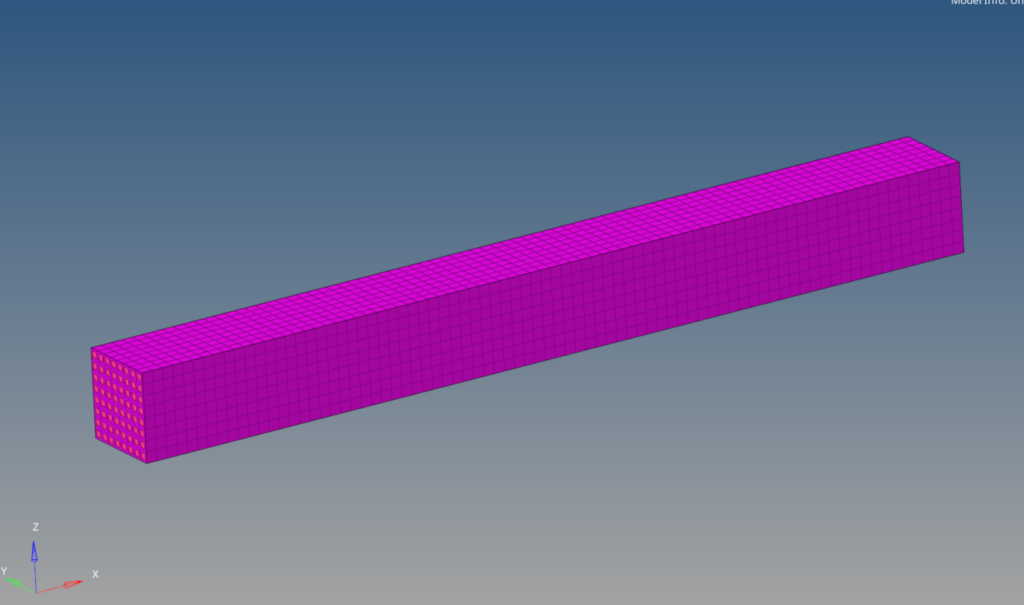
In this tutorial, we will be using a beam of dimension 8 mm x 8 mm x 80 mm meshed using Hex elements of size 1 as shown in the image below.
Defining thermal elements
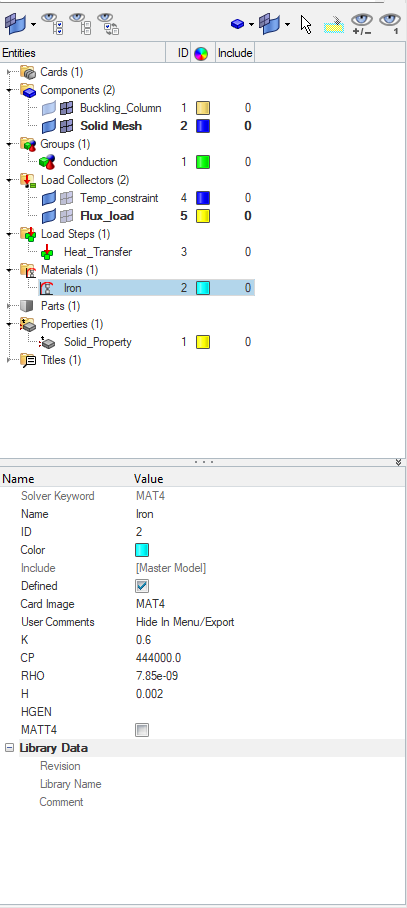
To perform the thermal analysis, we need to define the material for thermal elements. Material for thermal elements can be defined using the MAT4 card image and requires heat transfer coefficient and density inputs. You can read more on materials and properties in HyperMesh here. To define a new material, we can right-click on the white browser area and then go to Create -> Material. We will name this material Iron. We will put the values for the material as shown in the image below.
Next, we have to create a property for this. We can again right-click on the white browser area and then go to Create -> Property. We will name this property Solid_Property. Now we have to create groups to define which elements will be used for thermal analysis. To do this, we can right-click on the white browser area and then go to Create -> Groups. We will name this group as Conduction and then select the elements under this group. We will select elements on one 8 mm x 8mm face of the beam under this group.
Boundary Condition
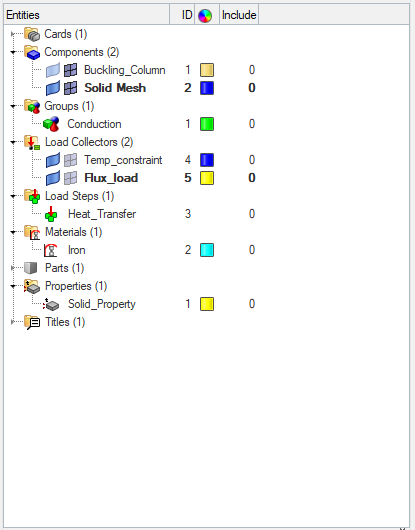
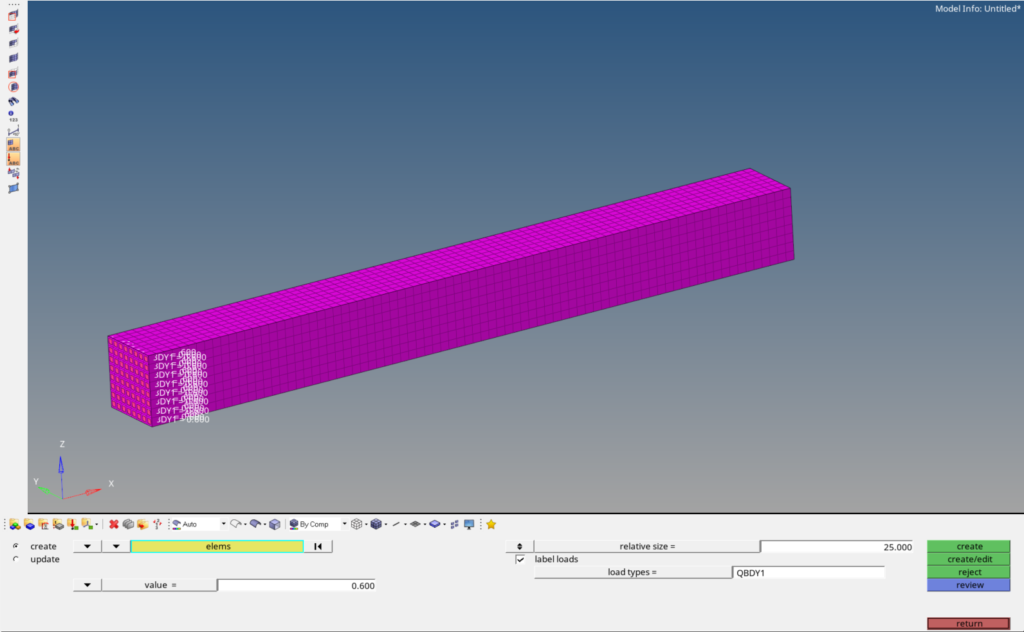
To apply boundary conditions, we have to first create load collectors for the same. We can right-click on the white browser area and then go to Create -> Load Collector. We will name this load collector the flux load. Then, to create the thermal load, we can go to Analysis -> Flux, and then select the elements on which the flux load will be applied, i.e., the elements under the conduction group, as shown in the image below. We will keep the flux value at 0.6.
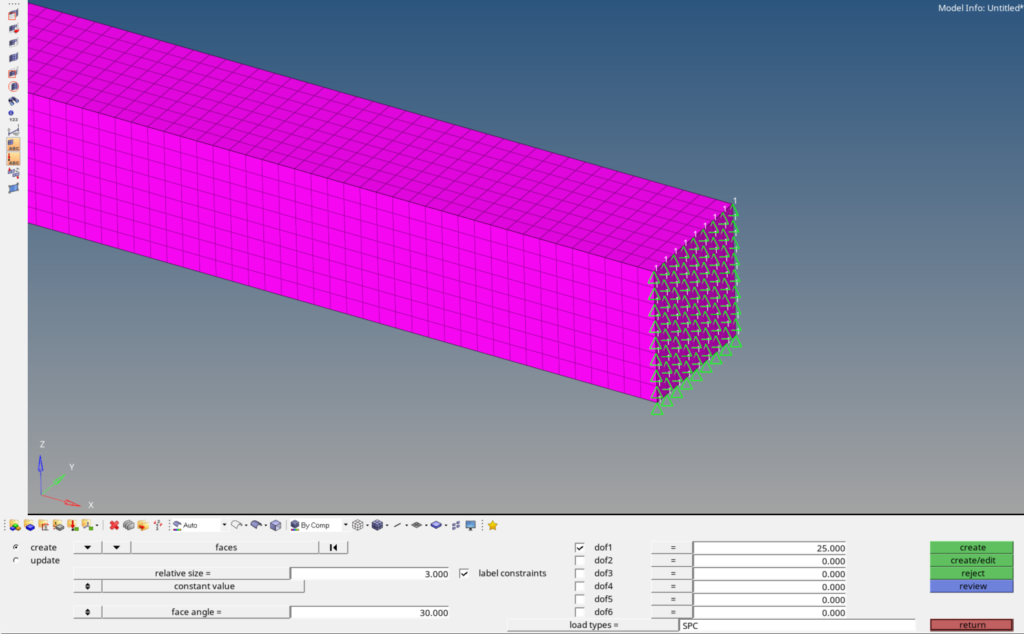
Then we will create a new load collector by right-clicking the white browser area again and selecting Create -> Load Collector. We will name this load collector temp_constraint. Then we will create temperature constraints by going to Analysis -> Constraints. Then select only the first dof and uncheck all the other dofs. We will assign a value of 25 to dof 1; this is the temperature constraint. We will select the face opposite to the face on which the flux load is applied.
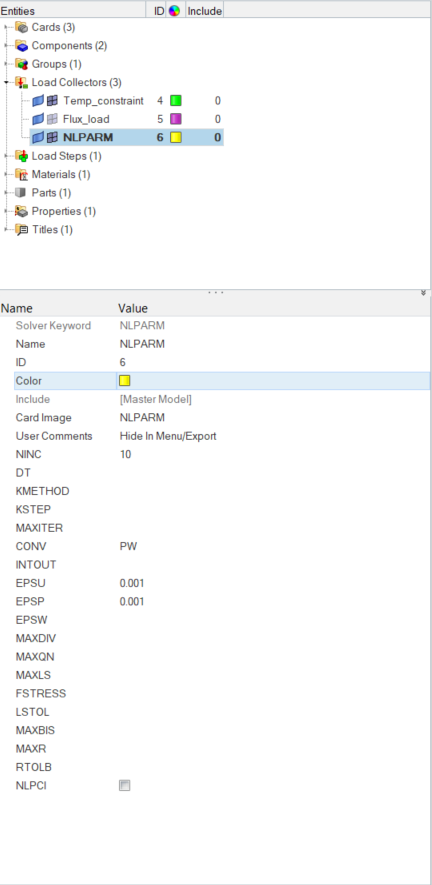
Next, we will create an NLPARM load collector. We can do this by right-clicking the white browser area and selecting Create -> Load Collector. We will name this load collector as NLPARM, select the card image of this load collector as NLPARM, and assign the values in the fields as shown in the image below.
Analysis Setup
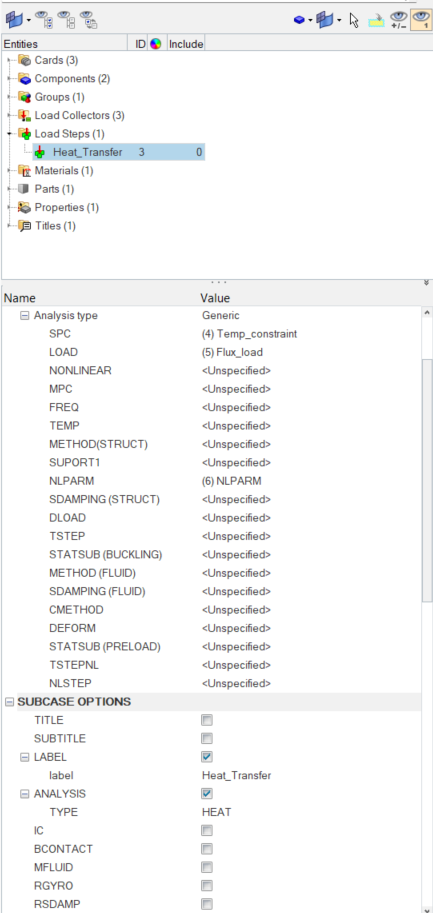
Next, we will create a Load Step by right-clicking on the white browser area and then going to Create -> Load step. We will name this load step as thermal analysis. We will change the analysis type from generic to Heat transfer (static), and then we will reference the temp_constraint load collector under the SPC field and flux under the Load field.
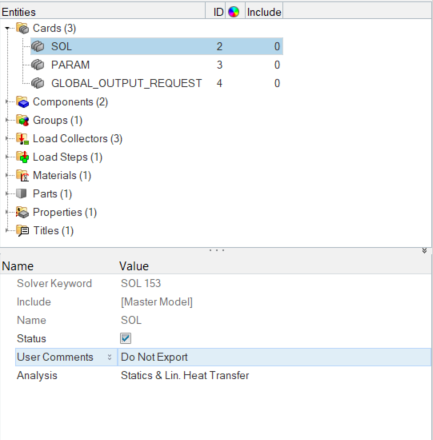
After this, we need to define the control cards for the analysis to take place. We can do this by going to Analysis -> Control Cards -> Solution. We have to select SOL 153 for this case.
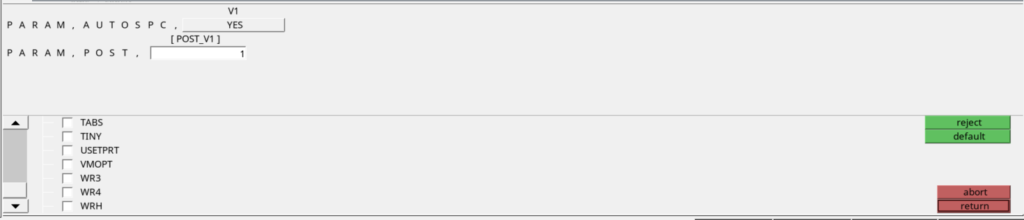
Then we need to select the parameter for the solver. We can do this by going to Analysis -> Control Cards -> PARAM. We will select AUTOSPC as Yes, and POST as 1.
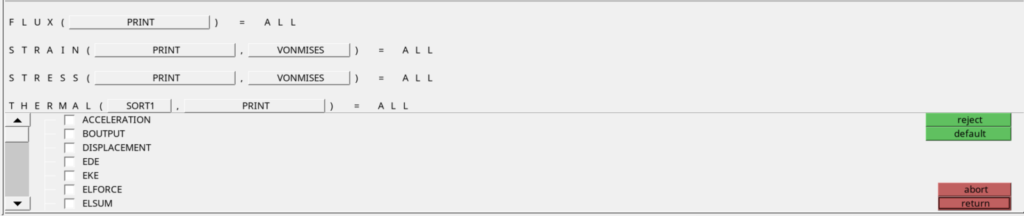
Then we need to select Output requests. For this, we can go to Analysis -> Control Cards ->Global Output Requests. We will select Flux and Thermal outputs.
Performing Analysis
To perform the analysis, we need to export the BDF file. We can do this by going to File -> Export and selecting the export format and location, and then clicking on Export. After this, open the Nastran solver and select the file.
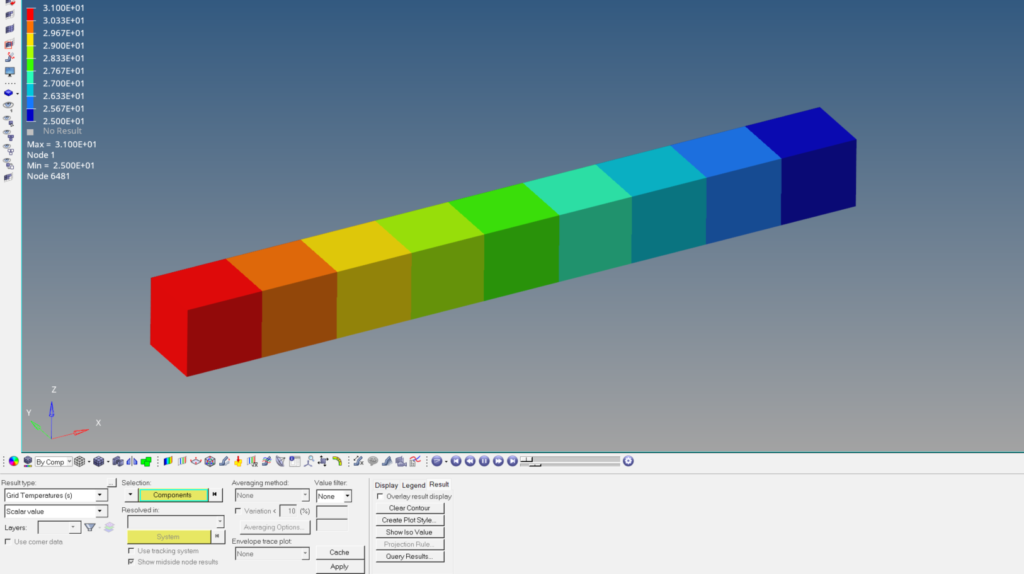
Refer to the video below for better clarity.
This is all for this post. Hope you learned something new from this post. Don’t forget to follow my Facebook and Instagram pages for regular updates. See you all in the next post. Till then, keep learning.